

Spending Budgets Widget
The Spending Budgets widget provides customers the ability to improve their financial wellness by helping them understand, plan, and stay on track with their finances through custom budgets.
If you're interested in Spending Budgets but do not wish to use Bud's widget you can integrate directly with our Spending Budgets API's.
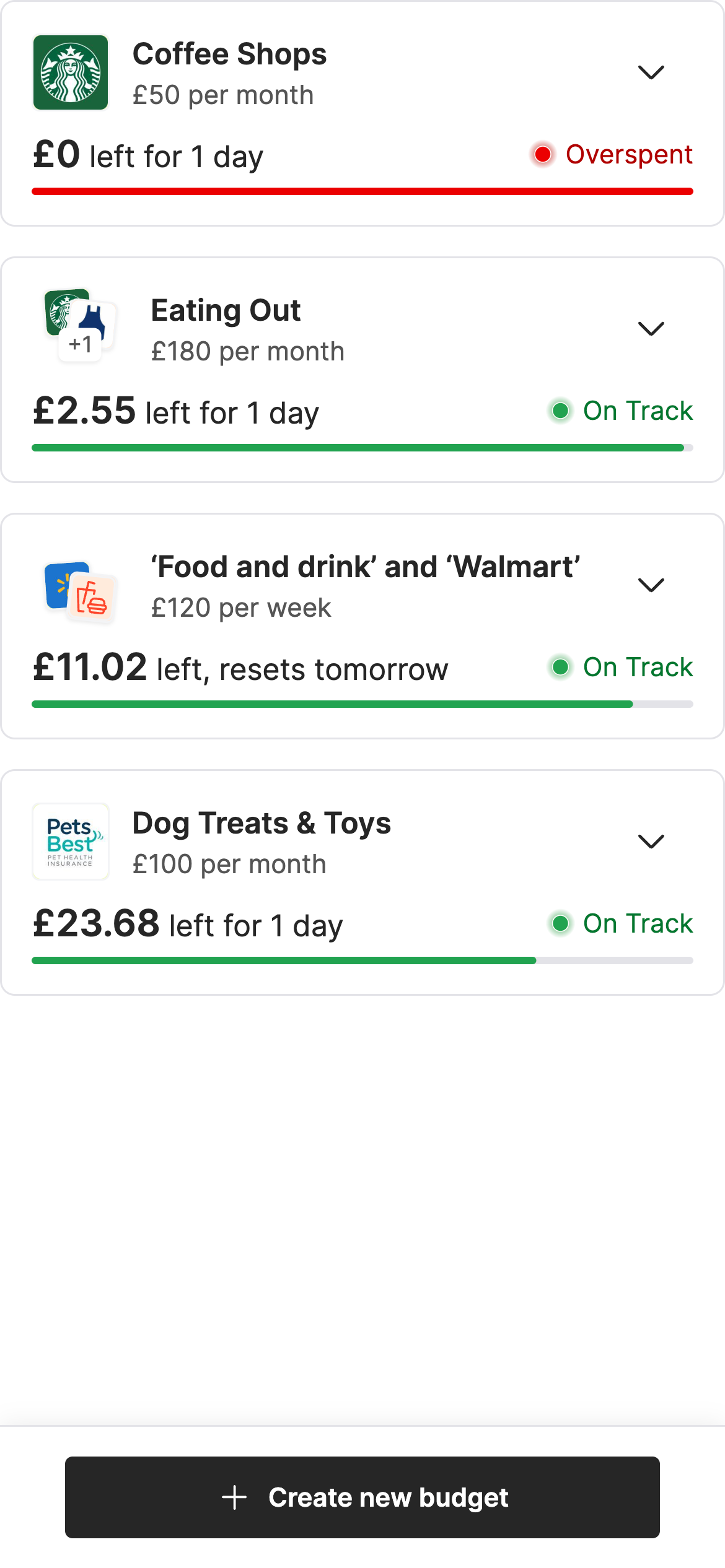
Budget overview
How it works
Creating a budget
- If creating your first budget, click Create a budget
- Otherwise, click + Create new budget at the bottom of the screen
- Budgets can be created for categories and/or merchants. Select any number of categories, sub-categories and merchants you'd like to be tracked for your budget
- Optionally, set the name of your budget
- Where a custom name isn't set, a name will be auto-generated based on your selected budget categories and/or merchants
- Click Next
- Set the budget amount, by either:
- Selecting a preset amount based on your current average spend, or 5%, 10% or 25% less than your average spend
- Setting a custom amount
- Set the budget recurrence:
- Monthly, which will be selected by default
- Weekly
- Set the budget reset day
- For monthly, this will be 1st through 31st of the month
- For weekly, this will be Monday through Sunday
InfoWhere the current month does not have the same amount of days as is selected for the reset date, the budget will default to resetting on the last day of the month. For example, selecting 31st of the month will result in a budget in February of a regular year to end on the 28th.
Budgets are created against a customer as opposed to a specific account, this means that any budgets created will track a customer's spending across all of their accounts within the Bud platform.
- Click Save Budget
- You will now see a visualisation of how you are tracking towards this budget for the current period
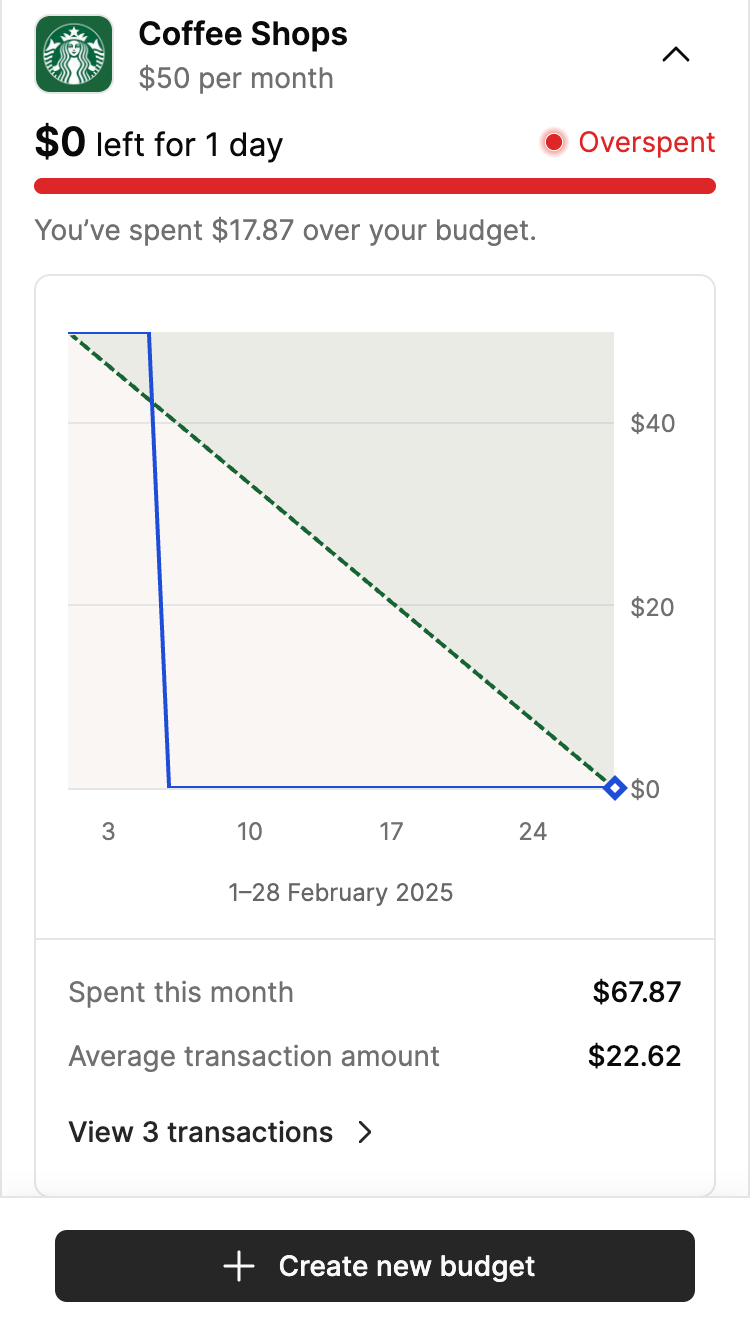
View a created budget
Editing a budget
- Expand the budget you'd like to edit
- Follow steps 2 through 8 of 'Creating a budget'
InfoWhen editing a budget, if the budgets existing name was saved as the auto-assigned name then changing the selected categories and/or merchants will result in the name being auto-updated to match.
Where a custom name was previously assigned, this name will always stay the same unless you change it.
Deleting a budget
- Expand the budget you'd like to delete
- Click Delete
- Confirm deletion by clicking Yes, delete
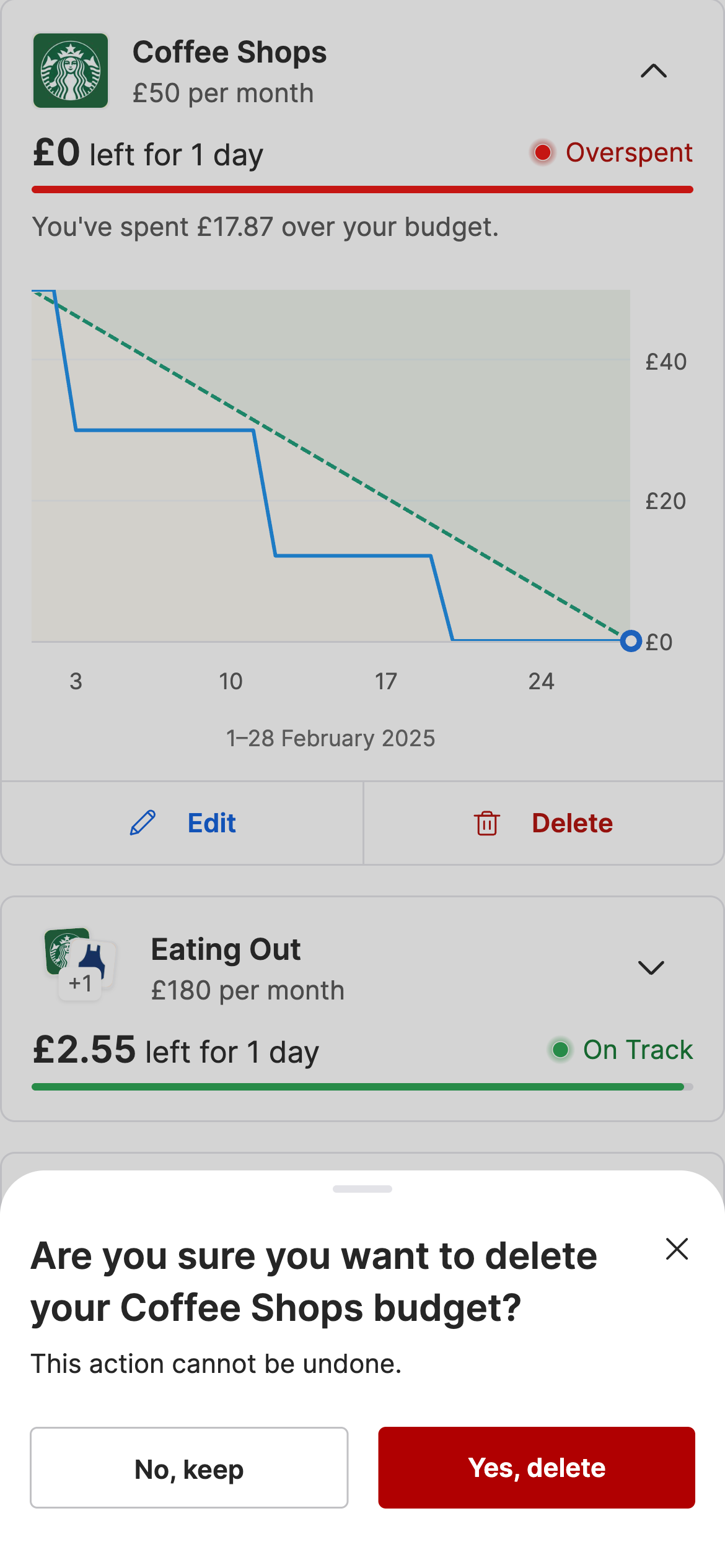
Deleting a budget
Updated 5 months ago