

Net Worth Widget
The Net Worth widget enables customers to track their current financial position and explore how it might change in the future, combining a net worth tracker with a what-if projection simulator in one place.
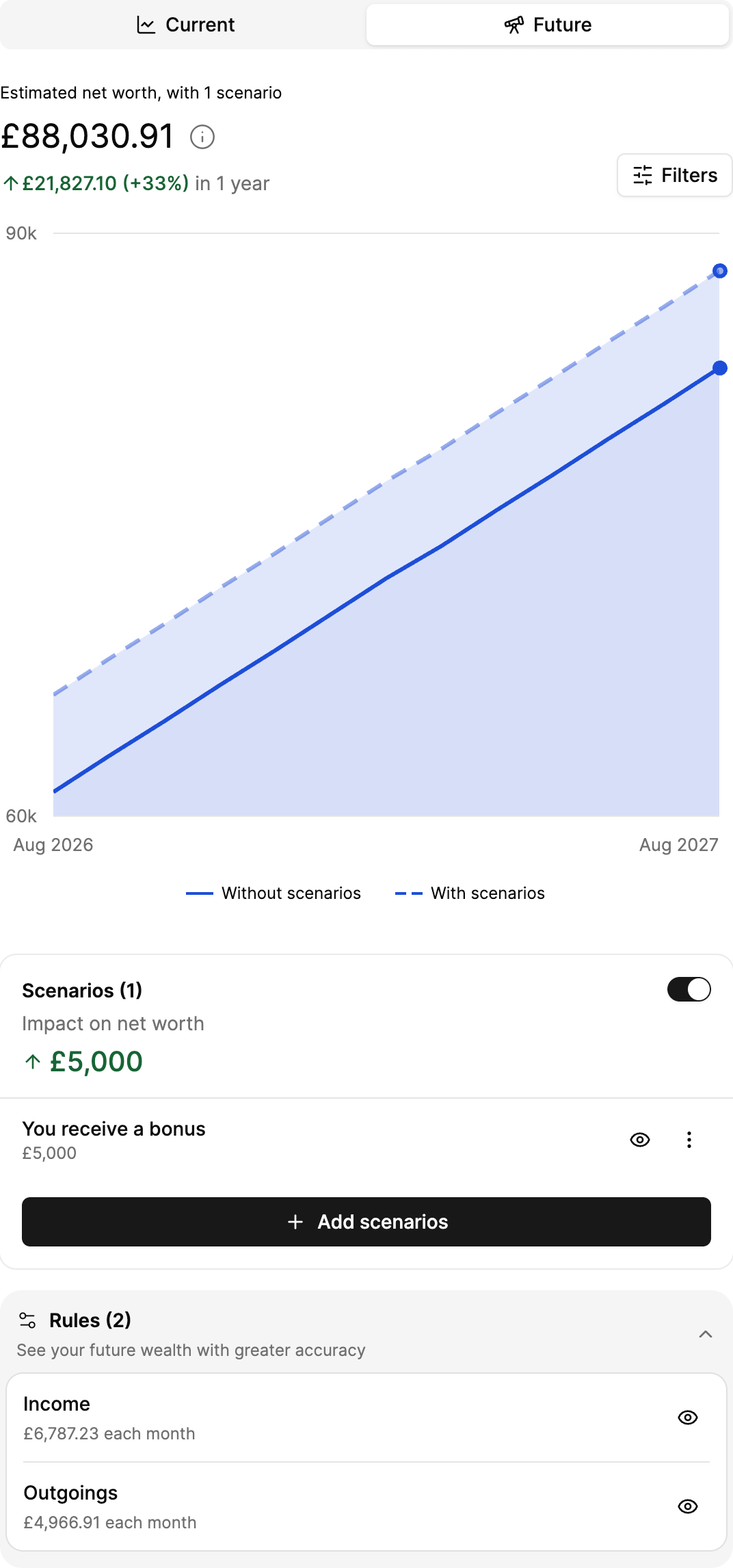
Future overview
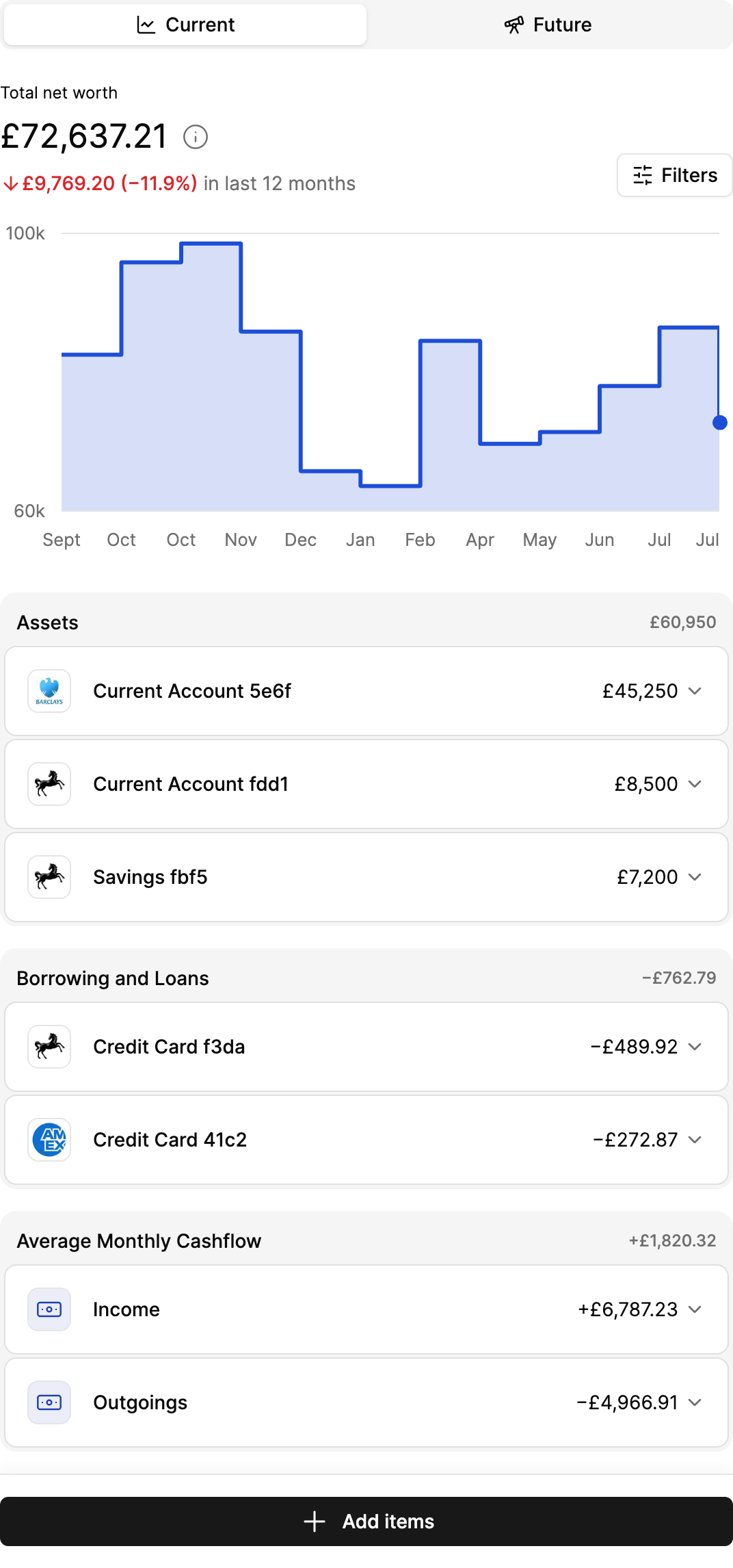
Current overview
How it works
The widget has two tabs: Current, showing today's net worth, and Future, showing a projection that customers can adjust with their own scenarios.
Online and offline items
A customer's net worth is made up of items - one for each asset, or liability that contributes to their financial position. An item can be either:
- Online: created and kept up to date automatically from a customer's connected accounts, whether through open banking or Bud's own first-party data. Some, like credit cards, can only appear this way.
- Offline: added by the customer themselves to represent things Bud don't or can't get directly from their accounts, such as a car, or property and other holdings held outside a connected account. Customers are responsible for keeping these up to date.
Item types
- Assets: Cash and savings, Investment, Pension, Property, Vehicle and valuables, Other
- Borrowing and Loans: Mortgage, Loan, Other
- Borrowing and Loans (online only): Credit card
Cashflow
Income and outgoings are a third, separate item type. These cashflow items are generated automatically from a customer's transaction data on connected accounts over the trailing three months. They can't be created from scratch, but customers can edit them to provide more accurate or up-to-date figures. The difference between them sets the baseline for whether your net worth will be increasing or decreasing in the future. For example, if a customers income is £10,000 per month and their outgoings are £8,000 per month then their net worth will increase by £2,000 per month when viewed in the future tab.
The Current tab
The Current tab shows a customer's net worth today: a headline figure, a breakdown of assets and liabilities, and a chart of how net worth has changed over time.
Adding an item
- Click Add items.
- Select an item type.
- Enter the item's details.
- Click Add.
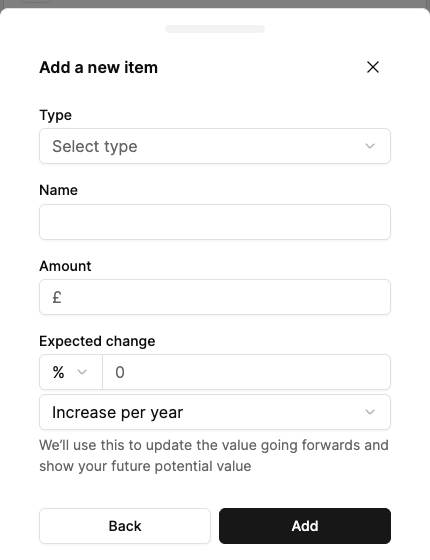
The fields shown vary by type. For example, loans ask for a loan type, while assets ask for an expected growth rate.
Editing an item
- Click an item card.
- Click Update.
- Update the available fields.
- Click Save.
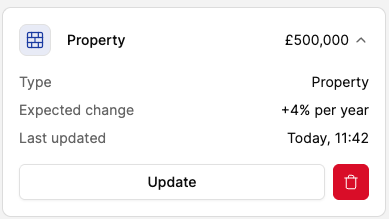
Online items may have some fields locked, since certain details from the connected account cannot be overridden, such as name or balance. Offline items are fully editable.
Archiving or deleting
- Click the remove action on an item card.
- Select Archive or Permanently delete, then click Confirm.
- If Permanently delete was selected, confirm again by clicking Yes, delete.
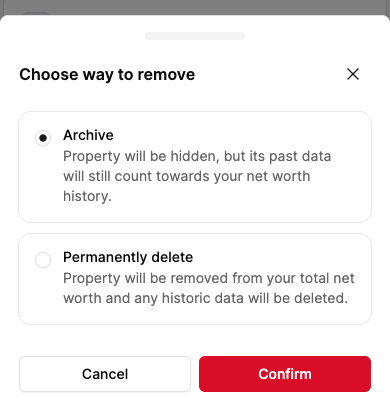
Archiving hides an item from calculations and projections while keeping its history. Deleting removes an item permanently and can't be undone.
Filtering the view
A filter drawer lets customers choose a timeframe (3, 6, or 12 months) and pick which items are included in the chart and totals.
The Future tab
The Future tab projects a customer's net worth forward over a chosen timeframe. Two layers make up the projection: rules and scenarios.
Rules
A rule is generated automatically from an item's own parameters. For example, a savings account set to grow at 5% a year generates a rule projecting that growth forward. Each rule can be switched on or off to include or exclude it from the projection.
Scenarios
Scenarios are hypothetical what-ifs that customers layer on top of the baseline projection, to see how a specific change might affect their net worth over time.
Scenario types
- One-off events: receive a bonus, one-off expense
- Cashflow changes: change income, change outgoings
- Asset changes: change current value, change expected growth rate, add a new asset
- Loan changes: change interest rate, make an overpayment, add a new loan
Adding a scenario
- Click Add scenarios.
- Choose a scenario type.
- Enter the scenario's details.
- Click Add.
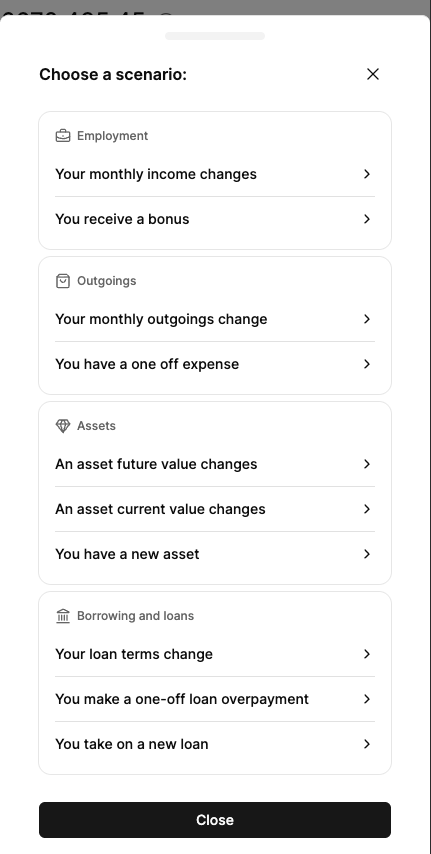
Some scenario types become unavailable once one already exists. For example, only one income-change scenario can be active at a time.
Editing and deleting a scenario
- Click a scenario's menu.
- Select Edit or Delete.
- If editing, update the details and click Save.
Filtering the projection
A filter drawer lets customers choose a projection timeframe (1 year, 5 years, or a custom end date) and pick which items are included, using the same item filter as the Current tab.
Customisation
The following customisations can be applied, by appending search parameters to the generated URL:
timeframe_months- Sets the historical timeframe shown on the Current tab
- Possible options are
3,6and12; defaults to 3 - For example
https://widgets.thisisbud.com/net-worth/current?token=an-example-token&timeframe_months=12
prediction_timeframe- Sets the projection timeframe shown on the Future tab
- Possible options are
1y,5yandcustom; defaults to 5y - For example
https://widgets.thisisbud.com/net-worth/future?token=an-example-token&prediction_timeframe=1y
prediction_date- An ISO 8601 date string setting the custom projection end date
- Required when
prediction_timeframeis set tocustom - For example
https://widgets.thisisbud.com/net-worth/future?token=an-example-token&prediction_timeframe=custom&prediction_date=2030-01
scenarios_active- Sets whether scenario mode starts switched on, overlaying the scenario projection on the Future tab's chart
- Possible options are
trueandfalse - For example
https://widgets.thisisbud.com/net-worth/future?token=an-example-token&scenarios_active=true
Updated 3 months ago